
 By Hashim Hashmi
A Garmin bicycle speedometer functions either through satellite-based GPS tracking on an Edge cycle computer or via a standalone, hub-mounted Speed Sensor 2 that calculates real-time speed using internal accelerometers. For maximum accuracy under thick tree canopy, in city canyons, or on indoor turbo trainers, pairing a dedicated wheel sensor with your head unit eliminates GPS lag and signal dropouts.
Garmin’s modern speed sensor—the Speed Sensor 2—uses a dual-band transmission system supporting both ANT+ and Bluetooth Smart protocols. This dual wireless capability allows the sensor to broadcast real-time speed data simultaneously to your Garmin Edge head unit, a triathlon watch, or third-party indoor training applications on a smartphone or tablet, ensuring broad compatibility and reliable data transmission.
Why Choose a Dedicated Garmin Speed Sensor Over GPS? (Garmin bicycle computer with GPS)
While most Garmin Edge computers use GPS to determine speed, a dedicated speed sensor offers distinct advantages in specific riding conditions, providing more accurate and immediate data. Understanding these differences helps you decide which setup is best for your cycling needs.
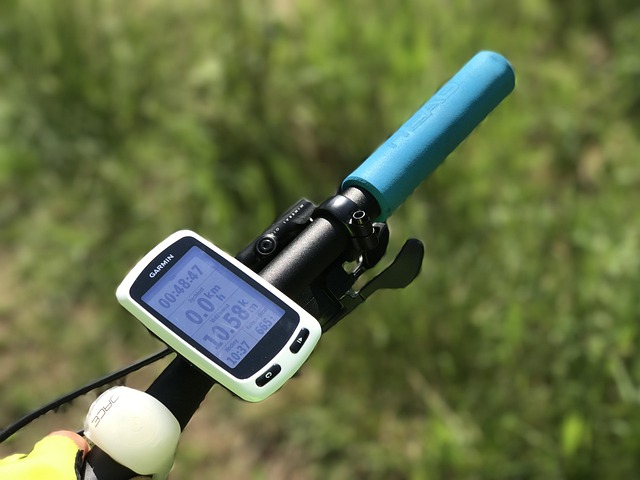
How GPS Bicycle Speedometers Work (and Their Limitations)
GPS bike computers calculate speed by sampling your geographical coordinates at fixed intervals—typically once per second—and measuring the distance covered between those points. Modern Garmin Edge head units access multiple satellite constellations, including GPS, GLONASS, and Galileo, to improve accuracy. However, satellite calculations rely on an unobstructed line of sight to the sky.
When you ride through dense forest, deep valleys, tunnels, or between high-rise buildings (often called “urban canyons”), satellite signal degradation causes positional drift. This often leads to erratic speed readings, sudden drops to zero, or inaccurate distance accumulation. Additionally, GPS units apply internal smoothing algorithms to filter out positional noise. While useful for stable readings, this smoothing introduces a noticeable delay of two to five seconds when you accelerate hard or brake heavily. This lag can be problematic when precise, real-time feedback is essential.
How a Wheel-Mounted Speed Sensor Works (and Its Advantages)
In contrast, a hub-mounted Garmin bicycle speedometer sensor relies on a three-axis accelerometer inside a sealed silicone sleeve. As the wheel rotates, the accelerometer measures rotational frequency. Because there are no external magnets or frame-mounted pickup arms to align, setup is straightforward, and signal transmission to your head unit is instantaneous. Every half-turn of the wheel generates immediate data, providing responsive velocity feedback on your screen.
For riders who demand precise split-second pace adjustments during time trials, interval sessions, or accurate distance tracking on indoor trainers, a dedicated hub sensor is superior to relying purely on GPS positioning. It provides consistent data regardless of satellite availability, making it indispensable for specific training and riding environments.
How to Set Up and Calibrate Your Garmin Speed Sensor 2
Installing a Garmin Speed Sensor 2 requires no tools and takes under five minutes. The sensor sits inside a rubber housing with an integrated elastic strap that stretches around the front or rear wheel hub shell. This simple, magnetless design makes it quick to attach and detach between bikes or for battery changes.
Step 1: Mount the Sensor to the Wheel Hub (Garmin bicycle computer mount)
Wrap the rubber sleeve around the center of your wheel hub. While you can install the sensor on either hub, mounting it on the front hub generally keeps it cleaner and away from chain grime. If you intend to use the sensor on an indoor turbo trainer, mount it on the rear hub, as the front wheel remains stationary during stationary rides. Ensure the rubber band sits flush against the hub shell without twisting or obstructing any spokes. A secure fit prevents the sensor from shifting during rides.
Step 2: Activate the Internal CR2032 Battery
The sensor runs on a standard CR2032 coin cell battery. To ensure it’s active, twist the outer hatch anti-clockwise using a coin to confirm the battery is seated correctly with the positive (+) side facing upwards. The sensor is shipped with a small plastic tab to prevent discharge; remove this tab if present. When activated or moved, an LED indicator flashes green for several seconds to confirm power and readiness. If the LED doesn’t flash, check the battery orientation or replace it with a fresh CR2032.
Step 3: Pair with Your Garmin Edge Display or Other Devices (Garmin bicycle computer app)
Turn on your Garmin Edge computer or compatible watch (e.g., Forerunner, Fenix series). Navigate to Settings, select Sensors, then Choose To add Sensor. Rotate your bicycle wheel for a few seconds to wake up the sensor and make it discoverable. Select “Speed” from the device list that appears, tick the checkbox, and confirm pairing. For Garmin Edge devices, pairing typically occurs over ANT+ for optimal performance, while mobile applications (like Garmin Connect or Zwift) will usually connect via Bluetooth Smart. If you have multiple sensors, ensure you select the correct one from the list.
Step 4: Set the Wheel Circumference for Maximum Accuracy (Garmin bicycle odometer)
By default, Garmin Edge devices use automatic calibration. The head unit cross-references GPS distance against wheel revolution counts over your first few kilometers of outdoor riding to calculate your wheel size. While auto-calibration works reasonably well for general use, entering your wheel circumference manually in millimeters yields significantly higher precision, eliminating minor discrepancies caused by GPS drift or initial setup.
To calibrate manually, you have two primary methods:
- Measure your tire size: The exact tire size (e.g., 700x25c, 29 x 2.25) is usually printed on the sidewall. You can then look up the corresponding circumference in a table or online calculator.
- Perform a chalk roll-out test: Mark a spot on your tire and the ground. Roll the bike in a straight line for one full wheel revolution, then mark the ground again. Measure the distance between the two marks in millimeters. This method accounts for your specific tire, pressure, and rider weight compression.
Common standard wheel circumferences include:
- 700x23c: 2097 mm
- 700x25c: 2105 mm
- 700x28c: 2136 mm
- 700x30c: 2146 mm
- 700x32c: 2155 mm
- 29 x 2.25-inch mountain bike tyre: 2282 mm
Inputting the exact figure into your Edge sensor settings (usually found under the specific speed sensor’s details in the sensor menu) prevents slight speed and distance distortions caused by tire pressure variations or rider weight compression. This manual input ensures the most consistent and accurate data.
Which Garmin Edge Head Unit Displays Speed Best? (Garmin bicycle computer comparison)
While a speed sensor measures wheel revolutions, you need a clear display to view your real-time pace. Garmin’s Edge line ranges from compact head units to large navigation screens. Choosing the right device depends on your riding environment, data requirements, and budget. All current Garmin Edge models are compatible with the Speed Sensor 2.

The entry-level Edge 130 Plus features a high-contrast 1.8-inch monochrome display that remains exceptionally easy to read in direct sunlight. It displays current speed, average speed, and distance across clear, customizable data fields without complex menus. This is an excellent choice for riders who want core metrics without distraction.
Mid-range devices like the Edge 540 and Edge 840 add multi-band GNSS reception alongside vibrant colour screens. Multi-band tracking improves GPS precision in challenging environments, though pairing them with a physical speed sensor still provides the crispest instantaneous speed updates, especially when GPS signals are weak. These units offer more advanced training metrics and navigation features.
The flagship Edge 1040 offers an expansive 3.5-inch touchscreen display. This larger screen allows you to view current speed alongside live elevation profiles, cadence, power, and turn-by-turn map prompts without cluttering the screen. It is ideal for cyclists who prioritize comprehensive data display, extensive navigation, and long-distance touring.
| Garmin Edge Model | Display Type | Claimed Battery Life | Multi-Band GNSS | Best Suited For |
|---|---|---|---|---|
| Edge 130 Plus | 1.8-inch monochrome | Up to 12 hours | No | Riders wanting lightweight, straightforward speed metrics |
| Edge 540 / 840 | 2.6-inch colour | Up to 26 hours | Yes | Performance riders tracking structured training data |
| Edge 1040 | 3.5-inch colour touchscreen | Up to 35 hours | Yes | Long-distance touring, gravel navigation, and multi-day rides |
Using a Garmin Speed Sensor for Indoor Training and Other Edge Cases
One major advantage of a dedicated hub speed sensor is its versatility when riding indoors. When your bike is mounted on a non-smart turbo trainer or roller setup, GPS signals register zero speed because your position remains static. Fitting a Garmin Speed Sensor 2 to your rear wheel hub enables accurate tracking of speed and virtual distance on your head unit or virtual training apps, providing valuable metrics for your indoor sessions.
The Speed Sensor 2 also features built-in internal memory. It can record distance and duration standalone without needing a connected head unit or smartphone during the ride. This is particularly useful if you forget your computer or prefer a minimalist setup for a short ride. Once reconnected to the Garmin Connect application, it syncs your ride data automatically, making sure your activity history is complete.
Battery Changes and Sensor Maintenance
A fresh CR2032 battery in a Garmin speed sensor provides approximately 300 hours of active riding time. To maximize battery lifespan, the internal accelerometer enters sleep mode after two minutes of inactivity. When the battery charge runs low, the status LED flashes red instead of green upon movement, indicating it is time to replace the coin cell.
The sensor casing carries an IPX7 water resistance rating, meaning it withstands rain, road spray, and puddle splashes. This makes it suitable for all-weather outdoor riding. However, avoid directing high-pressure jet washers directly at the rubber hub housing, as water can force its way past the O-ring battery seal, potentially damaging the electronics. Regularly wipe the sensor clean with a damp cloth to prevent dirt buildup.
Who Benefits Most from a Dedicated Wheel Speed Sensor?
A standalone speed sensor is not mandatory for every cyclist. Modern GPS head units deliver sufficient accuracy for casual road riding on open highways where line-of-sight to satellites is rarely interrupted. For these riders, relying solely on GPS simplifies their setup and reduces costs.

However, I recommend investing in a dedicated Garmin Speed Sensor 2 if you belong to any of the following categories, as the benefits in accuracy and reliability significantly outweigh the minor inconvenience:
- Mountain bikers and gravel riders: Constant turns under dense tree cover or down narrow gorges frequently disrupt GPS tracking, leading to inaccurate speed and distance data. A speed sensor ensures consistent metrics.
- Indoor trainer users: Wheel speed tracking on basic wheel-on or roller trainers requires a physical rear hub sensor, as GPS is useless indoors. This is essential for recording indoor rides.
- Time trialists and interval racers: Immediate, zero-lag velocity display allows precise pacing without waiting for GPS signal smoothing to catch up. Critical for maintaining specific power zones or speed targets.
- Commuters in urban canyons: Tall city buildings cause satellite signal reflection and blockage, leading to inaccurate speed spikes or drops on GPS-only tracking. A sensor provides reliable data in these environments.
- Cyclists demanding maximum accuracy: If you are meticulous about logging every millimeter of distance and every second of speed, manual wheel circumference calibration with a speed sensor offers the highest possible precision.
Conversely, if you ride strictly on open country roads, do not use indoor rollers, and do not mind a minor delay in rapid speed updates or occasional GPS inaccuracies, relying solely on your Garmin Edge’s internal GPS will keep your setup simpler and avoid the additional cost of the sensor.
Related guides
Frequently asked questions
Can a Garmin speed sensor work without a GPS unit?
Yes, the Garmin Speed Sensor 2 contains internal memory that can record ride distance and duration independently. It syncs the saved activity data directly to the Garmin Connect smartphone application via Bluetooth without requiring a GPS head unit during your ride.
Which wheel should I attach my Garmin speed sensor to?
For outdoor riding, attaching the sensor to the front wheel hub is generally best because it stays cleaner away from drivetrain oil and potential impacts. For indoor turbo trainer use, you must attach it to the rear wheel hub because the front wheel remains completely stationary.
How do I know if my Garmin speed sensor battery is low?
When you move the wheel to wake up the sensor, the small LED light on the casing will flash red instead of green if the CR2032 coin cell battery is low and needs replacement. This visual cue helps you replace the battery before it dies mid-ride.
Does a Garmin speed sensor override GPS speed on an Edge computer?
Yes, when a paired Garmin speed sensor is connected and active, your Garmin Edge cycle computer automatically prioritizes the sensor’s wheel revolution data for real-time speed and distance. It continues to use GPS for map navigation, elevation data, and route logging, effectively combining the strengths of both systems for comprehensive data.
What if my Garmin Edge doesn’t find the speed sensor?
First, ensure the sensor is awake by spinning the wheel for a few seconds and checking for the green LED flash. Confirm the CR2032 battery is correctly seated or replace it. On your Edge, ensure you’ve selected “Add Sensor” and are in close proximity to the sensor. If issues persist, try removing and re-adding the sensor from your Edge’s sensor list, or check for any firmware updates for your Edge device.